
How to Download & Set Up PCSX2 PS2 Emulator on PC (Windows)
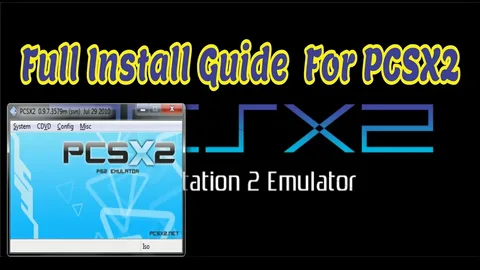
Do you miss playing classic PlayStation 2 games but no longer have access to your console? Many gamers face this problem when their old PS2 stops working or when they simply want to enjoy those legendary titles on a modern device. Fortunately, there is a solution that allows you to relive the PS2 gaming experience directly on your computer and the PCSX2 PS2 emulator on PC.
I personally tested PCSX2, one of the most reliable PlayStation 2 emulators available today. After experimenting with different settings and configurations, I created this simple guide to help beginners install and set up the emulator without confusion.
In this step-by-step tutorial, you’ll learn how to download PCSX2, install it on Windows, configure BIOS, add games, and optimize graphics settings for smooth gameplay. By the end of this guide, you’ll be able to run your favourite PS2 games on your PC with improved visuals and better performance.
What Is PCSX2 PS2 Emulator?
PCSX2 is a free and open-source PlayStation 2 emulator that allows users to play PS2 games on a Windows computer. Instead of using a physical console, the emulator recreates the PS2 hardware environment digitally on your PC.
This means the emulator mimics how the original console works so that PS2 game files can run smoothly on modern systems.
With PCSX2, players can enjoy several improvements that were not possible on the original console. These include higher screen resolutions, smoother frame rates, custom controller support, and flexible save options.
Another major advantage is that PCSX2 continues to receive updates from developers around the world.</en-us-grammar> These updates improve performance, add compatibility for more games, and fix bugs that may appear in older versions. To run PCSX2 PS2 Emulator properly, you need two important things:
- A PS2 BIOS file (legally dumped from your own console)
- PS2 game files in ISO format
Once everything is configured, you can easily launch and play games directly from your computer.
PCSX2 PS2 Emulator Features
PCSX2 is not just a basic emulator. It includes several advanced features that improve the original PlayStation 2 gaming experience.
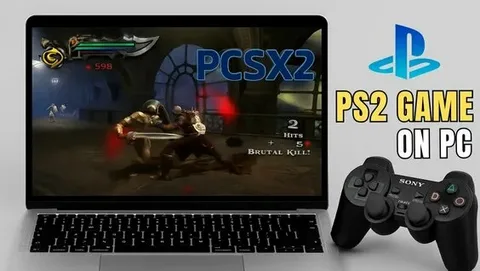
Play Thousands of PS2 Games
PCSX2 supports a large portion of the PS2 game library. Popular titles like RPGs, racing games, fighting games, and action-adventure games run smoothly when configured correctly.
Regular Updates and Improvements
The emulator is constantly updated by developers. These updates improve compatibility, optimize performance, and introduce new features that make emulation more stable.
High-Resolution Graphics Support
One of the biggest advantages of PCSX2 is its ability to upscale graphics. While the original PS2 supported lower resolutions, PCSX2 can render games at 1080p, 1440p, or even 4K, making older titles look sharper on modern monitors.
Game-Specific Fixes
Some PS2 games require unique settings to run perfectly. PCSX2 allows users to apply game-specific patches or configuration adjustments to solve glitches or improve performance.
Flexible Controller Support
The emulator supports multiple controllers, including DualShock, Xbox controllers, and other USB gamepads. Players can also map keyboard keys to simulate controller buttons.
Save States Feature
Unlike the original console, PCSX2 includes a save state feature. This allows you to save your game at any moment and continue later from the same point.
Widescreen Support
Many PS2 games were originally designed for a 4:3 display. PCSX2 offers optional widescreen patches so players can enjoy a 16:9 gaming experience.
Screenshot and Recording Tools
You can capture gameplay screenshots or record videos directly inside the emulator without needing additional software.
Cheat Code Compatibility
PCSX2 also supports cheat codes through .pnach files, allowing players to modify game behaviour or unlock additional features.
These features make PCSX2 PS2 Emulator one of the most powerful PS2 emulators available for PC users.
System Requirements for PCSX2 PS2 Emulator
Before installing the emulator, it’s important to make sure your computer meets the basic requirements.
Minimum Requirements
- Operating System: Windows 10 (64-bit)
- Processor: Intel Core i3 or AMD Ryzen 3
- RAM: 4 GB
- Graphics Card: GPU supporting OpenGL 4.5 or Direct3D 11
- Storage: Around 500 MB for emulator files
Recommended Requirements
- Operating System: Windows 11
- Processor: Intel Core i5 / Ryzen 5 or better
- RAM: 8 GB or more
- Graphics Card: GTX 1050 / RX 560 or equivalent
- Storage: SSD for faster loading times
A stronger CPU and GPU will help you run games at higher resolutions and smoother frame rates.
How to Download PCSX2 PS2 Emulator for PC
Downloading PCSX2 is simple and completely free. However, it is always recommended to download the emulator from the official website to avoid malware or outdated versions.
Follow these steps:
- Visit the official PCSX2 website:
https://pcsx2.net - Go to the Download section.
- Choose between:
- Stable Version (recommended for beginners)
- Nightly Build (latest features, but may contain bugs)
- Select your operating system. For this guide, choose Windows.
- The download will begin automatically.
After the download finishes, the emulator file will be ready for installation.
How to Install PCSX2 PS2 Emulator on Windows
Once the emulator is downloaded, follow these installation steps:
- Extract the downloaded ZIP file using WinRAR or 7-Zip.
- Open the extracted folder.
- Double-click the pcsx2-qt file to launch the emulator.
- A setup wizard will appear.
During the setup process:
- Keep the default language set to English
- Enable Automatic Updates so the emulator stays updated
- Click Next to continue
Adding PS2 BIOS to PCSX2 PS2 Emulator
The next step is adding the PS2 BIOS file, which allows the emulator to simulate the original console.
- Click the Browse button in the BIOS section.
- Navigate to the folder where your BIOS files are stored.
- Select the BIOS file that matches your region (USA, Europe, or Japan).
- Click Next to proceed.
Once the BIOS is detected successfully, the emulator will allow you to continue with the setup.
Adding PS2 Games to PCSX2
After BIOS configuration, you can add your PS2 games.
- Open Settings.
- Select Game List.
- Click the Add Folder option.
- Browse to the location where your PS2 ISO files are stored.
- Click Next.
PCSX2 will automatically scan the folder and display the games inside the emulator library.
Graphics Configuration for Better Performance
To improve gameplay performance and visuals, adjust the graphics settings.
- Go to Settings → Graphics.
- Choose the Renderer option.
Available renderers include:
- Vulkan
- OpenGL
- Direct3D 11
- Direct3D 12
If your PC has a modern graphics card, Vulkan usually provides the best performance.
For older systems, OpenGL or Direct3D11 may work better.
You can experiment with these options and choose the one that runs your games smoothly.
Configuring Controllers in PCSX2 PS2 Emulator
PCSX2 supports both keyboard controls and external controllers.
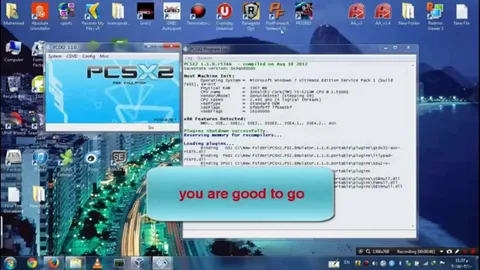
To configure controls:
- Go to Settings → Controllers.
- Select Controller Port 1.
- Click Automatic Mapping.
If a USB or Bluetooth controller is connected, the emulator will detect it automatically.
External controllers provide a much more comfortable experience compared to keyboard controls, especially for racing or action games.
How to Play PS2 Games on PC
After completing the setup, playing games becomes very easy.
- Open PCSX2.
- Go to the Game List.
- Double-click the game you want to play.
The emulator will launch the game, and you can start playing immediately.
If you experience lag or graphical issues, try changing the graphics renderer or lowering resolution settings.
Troubleshooting Common PCSX2 Issues
Even with correct installation, some users may face minor issues.
Here are a few quick fixes:
- Switch graphics renderer if performance is slow.
- Lower resolution or disable advanced enhancements.
- Make sure BIOS files are placed in the correct folder.
- Update your graphics drivers.
- Use the latest PCSX2 PS2 Emulator version.
These simple adjustments usually solve most emulator problems.
Frequently Asked Questions (FAQs)
What is PCSX2 PS2 Emulator?
PCSX2 is a free emulator that allows users to play PlayStation 2 games on a PC by recreating the PS2 hardware environment.
Do I need a BIOS file to run the PCSX2 PS2 Emulator?
Yes. A BIOS file is required for the emulator to function because it contains essential system instructions used by the PS2 console.
What format are PS2 games in?
Most PS2 games are played using ISO files, which are digital copies of the original game discs.
Can I use a controller with PCSX2?
Yes. The emulator supports many controllers, including PlayStation, Xbox, and other USB gamepads.
Is PCSX2 safe to use?
Yes. PCSX2 is an open-source emulator that is safe when downloaded from its official website.
Can I download PCSX2 for free on Windows?
Yes, PCSX2 is completely free and open-source. You can download the latest version from the official website and install it on Windows to play PlayStation 2 games on your PC.
Why is my PCSX2 emulator running slowly?
Slow performance usually happens because of high graphics settings or an outdated GPU driver. Try lowering the resolution, switching the renderer to Vulkan or Direct3D11, and updating your graphics drivers to improve performance.
How do I set up PS2 BIOS in PCSX2?
To set up the BIOS, open PCSX2 and go to the setup wizard. Click the Browse button, select the folder where your PS2 BIOS files are stored, and choose the correct region BIOS. After that, complete the setup and start adding your PS2 games.
Conclusion
PCSX2, a PS2 emulator on PC, makes it possible to enjoy classic PlayStation 2 games on modern computers without needing the original console. With proper configuration, the emulator can deliver smoother performance, higher resolutions, and convenient features like save states and controller customization.
By following this guide, you can easily download, install, and configure PCSX2 on Windows. Once everything is set up, simply load your PS2 game files and start reliving some of the greatest gaming experiences ever created.