
Dumping PS2 BIOS: How to Get PS2 BIOS from Your Console
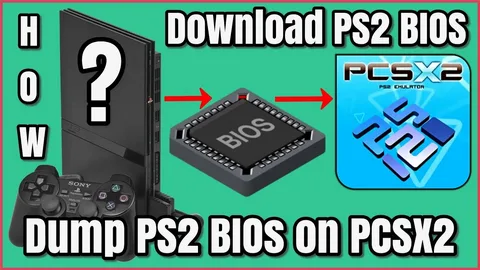
If you plan to play classic PlayStation 2 games on an emulator, one of the most important steps is obtaining the PS2 BIOS file from your own console. Many beginners are confused about how to do this safely and correctly. The good news is that dumping PS2 BIOS from your PlayStation 2 is easier than it sounds once you understand the process.
This guide explains how to dump the PS2 BIOS step by step, whether you own a modded PlayStation 2 or an unmodded PS2 system. By following these instructions, you will create a legal backup of your console’s BIOS and use it with emulators like PCSX2 on PC or AetherSX2 on Android.
Having your own dumping PS2 BIOS file ensures accurate emulation, better compatibility with games, and a more authentic PlayStation 2 experience. Let’s go through everything you need to know.
Why You Need to Dump PS2 BIOS from Your Own Console
Dumping the BIOS from your own PlayStation 2 is not just a technical step; it is the correct and responsible way to use emulation. It improves performance and also helps you stay on the safe side legally.
Stay Legally Safe
The PS2 BIOS is copyrighted software created by Sony. Downloading it from random websites may violate copyright laws and can also expose your device to malware.
By dumping the BIOS directly from your own console, you create a personal backup that you can safely use with your emulator.
Get Accurate Emulation
The BIOS acts as the core system software for the PlayStation 2. When you use your original BIOS file, the emulator behaves much closer to real PS2 hardware.
This means you will see the original boot screen, system menus, and authentic game behaviour, which greatly improves the overall gaming experience.
Improve Game Compatibility
Many PlayStation 2 games rely on BIOS-level functions to run correctly. When using a genuine BIOS from your console, emulators like PCSX2 are able to run a wider range of games with fewer glitches or crashes.
This significantly increases compatibility with the PS2 game library.
Preserve Your Console Software
Hardware can fail over time, especially with older consoles. By creating a BIOS backup, you preserve the essential system software of your PlayStation 2.
Even if your console eventually stops working, your BIOS backup allows you to continue enjoying your PS2 games through emulation.
Requirements for Dumping PS2 BIOS File
Before starting the process, make sure you have the necessary tools. The requirements differ slightly depending on whether your PS2 is modded.
Requirements for a Modded PS2
If your PlayStation 2 already has modifications such as Free McBoot or a modchip, dumping the BIOS is much easier.
You will need:
- USB flash drive (at least 1 GB, formatted as FAT32)
- PS2 memory card with Free McBoot (FMCB) installed
- uLaunchELF file manager
- BIOS dumper tool
- A computer to store the dumped BIOS file
Requirements for an Unmodded PS2
Dumping the BIOS from an unmodified console requires a few extra steps because the system cannot normally run homebrew applications.
You will need:
- PS2 memory card
- FAT32 formatted USB flash drive
- BIOS dumper tool
- uLaunchELF file manager
- A method to run homebrew software (such as FreeDVDBoot, Swap Magic, or disc swap method)
How to Dump PS2 BIOS from a PlayStation 2 Console
The concept behind dumping a BIOS is simple. You allow your PS2 to run a small homebrew program called a BIOS dumper, which reads the system firmware and copies it to a USB drive.
The exact process depends on whether your console is modded or unmodded.
A modded PS2 can run the necessary tools directly, while an unmodded system requires a workaround to launch them.
Dumping PS2 BIOS from a Modded PlayStation 2
If your console already has Free McBoot installed, the process becomes straightforward.
Follow these steps carefully.
Step 1 – Confirm Free McBoot is Installed
Insert the PS2 memory card and power on the console.
If you see a custom menu such as Free McBoot or uLaunchELF, your PS2 is already modded and ready for the process.
Step 2 – Download the Required Tools
Download the following files on your computer:
- BIOS Dumper tool
- uLaunchELF file manager
These files are small and commonly used for PS2 homebrew tasks.
Step 3 – Copy Files to a USB Drive
Format your USB drive to FAT32.
Copy the BIOS dumper tool and uLaunchELF files onto the USB drive.
Step 4—Insert the USB and memory card.
Insert the free McBoot memory card into slot 1 of your PS2.
Then plug the USB drive into the PS2 USB port.
Step 5—Launch uLaunchELF
Turn on the PS2 and open the free MCBoot menu.
Select uLaunchELF from the menu. Once it opens, locate and run the BIOS dumper tool.
The dumper will begin copying the BIOS data from the console to your USB drive.
This process may take a few minutes.
Step 6 – Verify the BIOS File
After the dumping process finishes, remove the USB drive and connect it to your PC.
You should see a file named something like
scphxxxxx.bin
The file size should be around 4 MB, which confirms the BIOS dump was successful.
Dumping PS2 BIOS from an Unmodded PS2
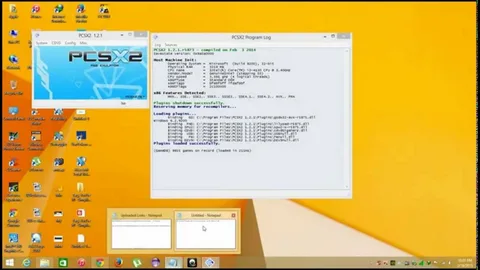
If your PlayStation 2 is not modified, the process requires a method to temporarily run homebrew applications.
Once you manage to launch uLaunchELF, the BIOS dumping steps remain similar.
Step 1—Prepare the USB Drive
Download the BIOS dumper and uLaunchELF files.
Copy them to a FAT32-formatted USB drive.
Step 2—Launch uLaunchELF
Because the console is unmodded, you must use a workaround method.
Possible methods include:
- Swap Magic disc
- Disc swap trick
- FreeDVDBoot exploit
These methods allow the PS2 to run the uLaunchELF file manager.
Step 3 – Run the BIOS Dumper
Once uLaunchELF launches, browse to the USB drive and start the BIOS dumper tool.
The program will begin extracting the BIOS from the console.
Step 4 – Dump the BIOS
Allow the tool to complete the process.
The dumping PS2 BIOS file will automatically be saved to the USB drive.
Step 5 – Transfer the BIOS to Your Computer
Remove the USB drive from the PS2 and connect it to your PC.
Confirm that the file ends with .bin and is approximately 4 MB in size.
Your BIOS dump is now complete.
How to Use the Dumping PS2 BIOS with an Emulator
Once you have successfully dumped the BIOS, you can load it into an emulator.
Using BIOS with PCSX2 (PC)
- Copy the BIOS file to the folder:
Documents → PCSX2 → BIOS
- Open the emulator and go to Settings → BIOS.
- Click Browse and select your BIOS file.
Using BIOS with AetherSX2 (Android)
- Transfer the BIOS file to your Android phone.
- Open the emulator.
- Select Import BIOS and choose the file.
Once imported, the emulator will detect it automatically.
Tips for a Safe and Successful BIOS Dump
Follow these best practices to avoid errors during the process.
- Always dump the BIOS from your own PS2 console
- Do not rename BIOS files after dumping them
- Use a reliable USB drive to avoid corruption
- If your USB isn’t detected, try a smaller drive (under 16 GB)
- Keep multiple backups of your BIOS file
These tips help ensure the emulator recognizes the BIOS correctly.
Legal Note
The PlayStation 2 BIOS is copyrighted software.
You are allowed to create a personal backup from your own console, but sharing or distributing BIOS files online is illegal.
Avoid downloading or dumping PS2 BIOS files from untrusted websites, as they may contain malware or modified files.
The safest and most responsible approach is to dump the BIOS directly from your own PlayStation 2.
Conclusion
Dumping PS2 BIOS from your own console is the best way to ensure safe and accurate PlayStation 2 emulation. Whether your system is modded or unmodded, the process allows you to create a personal backup of the essential system software.
With the BIOS file ready, you can load it into emulators like PCSX2 or AetherSX2 and start enjoying classic PS2 games on modern devices. By following the steps outlined in this guide, you’ll have a reliable setup that preserves the authentic PlayStation 2 dumping PS2 BIOS experience for years to come.
FAQs
Is dumping the PS2 BIOS legal?
Yes, it is legal if you dump the PS2 BIOS from your own PlayStation 2 console for personal use.
What is the size of a PS2 BIOS file?
A typical PS2 BIOS file is around 4 MB in size.
Can I use the same BIOS for PCSX2 and AetherSX2?
Yes, the same BIOS file works for both PC and Android PS2 emulators.
Why isn’t my emulator detecting the BIOS?
This usually happens if the BIOS file is placed in the wrong folder or renamed incorrectly.
Do I need BIOS to run PS2 games on an emulator?
Yes, emulators require a valid BIOS file to start and run PlayStation 2 games properly.